Gmail, HubSpot & Notion CRM Automation with n8n
Every sales team has the same problem: a new lead emails you, you forget to add them to the CRM, the follow-up slips, and three days later the deal is cold. Manual CRM updates are the silent killer of sales pipelines. But what if the moment an email landed in your Gmail inbox, it was automatically captured in HubSpot, logged in a Notion database, and answered with a personalized follow-up — all without lifting a finger? That is exactly what this n8n workflow delivers. In this guide, you will learn how to build a complete, production-ready CRM automation pipeline using Gmail, HubSpot, Notion, and n8n.
Why Combine Gmail, HubSpot, and Notion in One Workflow?
Most teams use multiple tools without connecting them. Gmail is where the conversation starts. HubSpot is where contacts and deals live. Notion is where the team tracks progress, adds notes, and manages the pipeline visually. When these three tools are siloed, every new lead requires at least three manual steps: open Gmail, copy the contact details, paste them into HubSpot, then switch to Notion and create another record. This takes time, introduces errors, and — most importantly — gets skipped when the team is busy.
n8n solves this by acting as the glue between all three tools. A single n8n workflow can listen for new emails, extract the relevant data, create a HubSpot contact and deal, log everything to Notion, and fire off a personalized reply — in under ten seconds. Once it is deployed, it runs silently in the background without any manual intervention.
The benefits are significant. You eliminate data entry errors because the same parsed email data flows into both HubSpot and Notion. Response times drop dramatically because the follow-up email goes out automatically. And your team can focus on high-value conversations instead of administrative work. For small teams especially, this kind of automation is the difference between a leaky pipeline and a well-managed one.
Understanding the CRM Pipeline Architecture
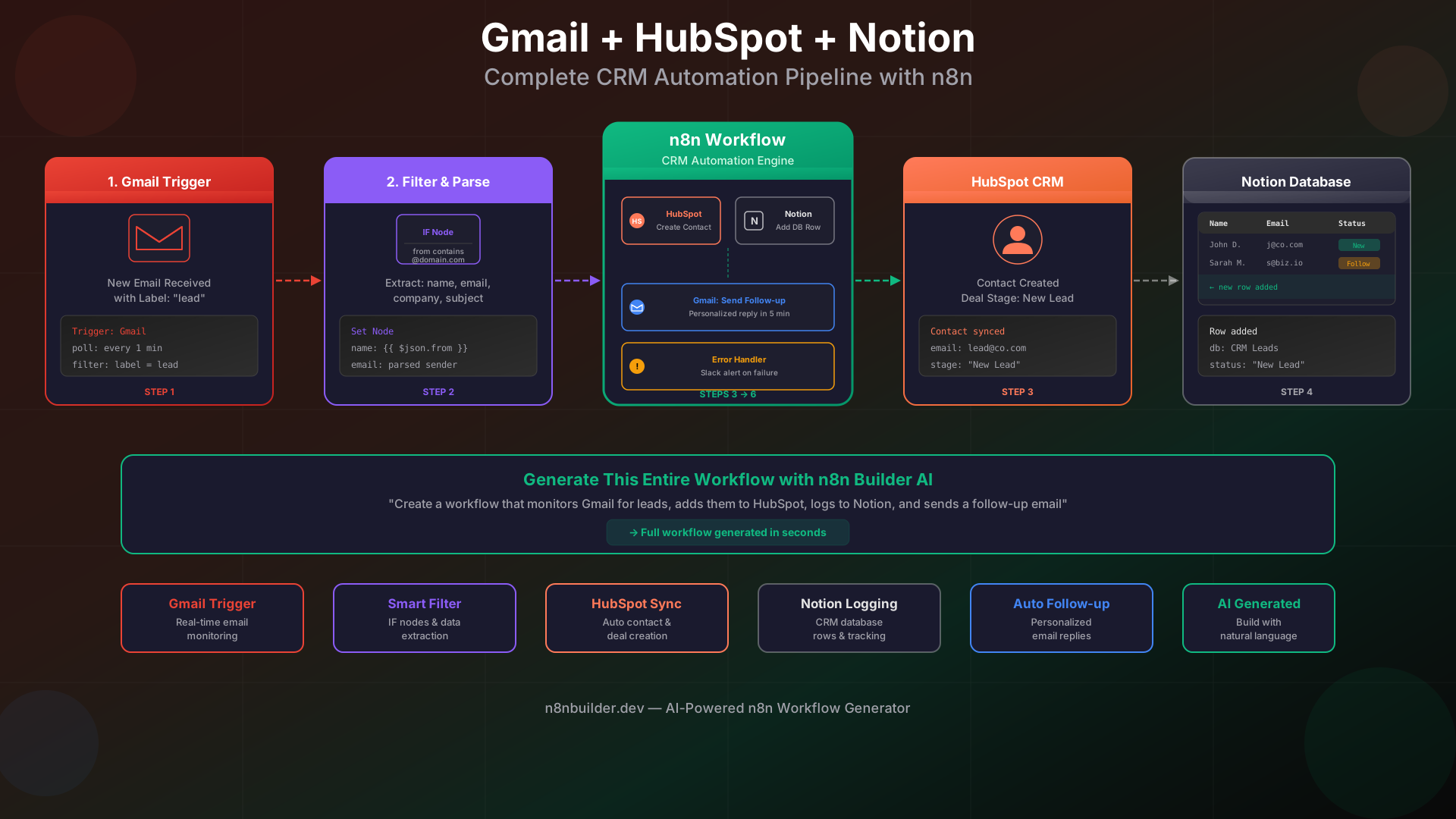
Before diving into the step-by-step setup, it helps to understand the full flow of this workflow. At a high level, it works like this:
- Trigger: A new email arrives in Gmail with a specific label (for example, "lead" or "inbound")
- Filter: An IF node checks whether the email meets your criteria (e.g., not from a known internal domain)
- Parse: A Set node extracts the sender name, email address, company (from the domain), and subject line
- HubSpot: The extracted data is used to create or update a contact and optionally open a new deal
- Notion: A new row is added to your CRM database in Notion with the contact details and status "New Lead"
- Follow-up: A Gmail node sends a personalized response to the lead thanking them for reaching out
- Error handling: If any step fails, a Slack message alerts the team so nothing falls through the cracks
This architecture is modular. You can remove the Notion step if you only use HubSpot, or swap the follow-up email for a Slack notification. The core pattern — trigger, filter, enrich, distribute — applies to dozens of CRM automation scenarios.
Prerequisites
To follow this guide, you will need the following accounts and tools set up:
- n8n instance: Either n8n Cloud, a self-hosted Docker setup, or a local installation
- Gmail account: With OAuth credentials configured in n8n
- HubSpot account: Free tier works; you need a Private App API token
- Notion account: With an integration token and a database created for CRM leads
- Optional: Slack workspace for error notifications
If you have the n8n Builder Chrome extension installed, you can skip most of the manual node configuration and generate the entire workflow from a single natural language prompt. We will cover that at the end of this guide.
Step 1: Setting Up the Gmail Trigger
The first node in the workflow is a Gmail Trigger. This node polls your Gmail inbox at a regular interval — every minute by default — and fires whenever a new email matching your criteria arrives. Open n8n and add a new workflow. Search for the Gmail Trigger node and drag it onto the canvas.
Configure the Gmail Trigger with the following settings:
- Resource: Message
- Operation: Watch (Trigger)
- Label: lead (or whichever label you use for inbound inquiries)
- Poll interval: Every minute
You will need to connect your Gmail account through n8n's OAuth flow. Go to Credentials → Add Credential → Gmail OAuth2 and follow the authorization steps. Once connected, the trigger will return email data including the subject, sender, body, and metadata for every new matching message.
A practical tip: apply a Gmail filter rule in your Google account to automatically label any email with the subject line containing "inquiry" or "question" or emails from contact forms as "lead". This way, the n8n workflow only processes genuine incoming leads and ignores newsletters or internal emails.
Step 2: Filtering and Parsing the Email Data
Not every email that hits the "lead" label will be worth processing. You might receive automated notifications, out-of-office replies, or spam that somehow got through. The second step adds a filter and a data parsing layer to clean up the input before it flows into your CRM.
Add an IF Node after the Gmail Trigger. Configure a condition that checks whether the sender's email address does not match your internal domain. For example:
- Condition: from does not contain @yourcompany.com
- Condition: from does not contain noreply@
- Condition: from does not contain no-reply@
Connect the true branch to the next step. The false branch can simply end the execution or optionally route to a logging step for monitoring purposes.
Next, add a Set Node to extract and normalize the data you need. Configure it to output the following fields:
- senderEmail:
{{ $json.from.value[0].address }} - senderName:
{{ $json.from.value[0].name }} - company:
{{ $json.from.value[0].address.split('@')[1].split('.')[0] }}(extracts domain name) - subject:
{{ $json.subject }} - receivedAt:
{{ $json.date }} - emailBody:
{{ $json.text }}(plain text body)
After this Set Node, you have a clean, structured data object that all subsequent steps can use consistently. This is an important pattern in n8n: always normalize your data early in the workflow so that downstream nodes are simple and predictable.
Step 3: Creating or Updating the HubSpot Contact
With the parsed data in hand, the next step is to sync the lead into HubSpot. Add a HubSpot Node and configure it as follows:
- Resource: Contact
- Operation: Upsert (create if not exists, update if exists)
- Email:
{{ $json.senderEmail }} - First Name:
{{ $json.senderName.split(' ')[0] }} - Last Name:
{{ $json.senderName.split(' ').slice(1).join(' ') }} - Company:
{{ $json.company }}
Using the Upsert operation is important here. If the same person emails you twice, you do not want duplicate contacts in HubSpot. The Upsert operation checks whether a contact with that email address already exists and updates it rather than creating a second record.
Optionally, you can add a second HubSpot Node immediately after to create a Deal linked to the newly created contact. Configure the deal with:
- Deal Name:
{{ $json.subject }} - Deal Stage:
appointmentscheduled(or whichever stage fits your pipeline) - Associated Contact ID: from the previous HubSpot node output
To authenticate with HubSpot, create a Private App in your HubSpot account under Settings → Integrations → Private Apps. Grant it access to the contacts, crm.objects.deals.write, and crm.objects.contacts.write scopes. Copy the token and add it as a HubSpot API credential in n8n.
Step 4: Logging the Lead in Notion
Your team probably uses Notion as a shared workspace to track leads visually. The fourth step adds a row to your Notion CRM database every time a new lead comes in, giving the whole team instant visibility without anyone needing to check HubSpot.
First, create a Notion database with the following properties:
- Name (Title) — the lead's full name
- Email (Email type) — sender email address
- Company (Text) — extracted company name
- Subject (Text) — email subject line
- Status (Select) — options: New Lead, Contacted, Qualified, Closed
- Source (Select) — options: Gmail, Form, LinkedIn, Referral
- Created At (Date) — timestamp when the record was added
In n8n, add a Notion Node and configure it:
- Resource: Database Page
- Operation: Create
- Database ID: paste the ID from your Notion database URL
- Map each property to the corresponding field from your Set Node output
- Set Status to "New Lead" as a fixed value
- Set Source to "Gmail" as a fixed value
For authentication, create a Notion Integration at notion.so/my-integrations, copy the Internal Integration Token, and add it as a Notion credential in n8n. Then in your Notion database, click Share → Invite and add your integration. Without this step, n8n will not have permission to write to the database.
After this step, every new lead has a record in both HubSpot and Notion, created from the same email data, within seconds of the original email arriving.
Step 5: Sending an Automated Follow-up Email
The fifth step closes the loop by sending a personalized follow-up email back to the lead. A fast, professional response dramatically increases conversion rates — studies consistently show that responding to inbound leads within five minutes is far more effective than waiting hours or days.
Add a second Gmail Node to the workflow and configure it:
- Resource: Message
- Operation: Send
- To:
{{ $json.senderEmail }} - Subject:
Re: {{ $json.subject }} - Message: write a personalized template using the extracted fields
A good follow-up template looks like this:
Hi {{ $json.senderName.split(' ')[0] }}, thank you for reaching out. I have received your message and will get back to you within one business day. In the meantime, feel free to browse our documentation at n8nbuilder.dev. Looking forward to connecting.
You can make this template more dynamic by using n8n expressions to include the original subject line, reference specific keywords from the email body, or adjust the tone based on the sender's company domain. For teams dealing with high email volume, this single step can save dozens of hours per month while ensuring every lead gets a prompt, professional response.
Step 6: Error Handling and Slack Notifications
No automation is complete without error handling. If the HubSpot API is down, if the Notion token expires, or if an email has an unexpected format, the workflow should alert someone rather than silently failing and losing a lead.
n8n provides a built-in Error Trigger Node that fires whenever any node in the workflow throws an error. Add this node to your canvas — it sits separately from the main workflow path — and connect it to a Slack Node configured to send a message to your team's alerts channel.
Configure the Slack alert message to include:
- The name of the workflow that failed
- Which node threw the error
- The error message itself
- The input data that caused the failure (to help with debugging)
This turns silent failures into actionable alerts. Your team can investigate immediately, fix the issue, and manually process any leads that were missed during the downtime. For most teams, this kind of observability is the difference between an automation they trust and one they constantly second-guess.
Generating the Entire Workflow with n8n Builder AI
Building this workflow manually — finding the right nodes, configuring credentials, wiring the expressions — takes significant time even for experienced n8n users. The n8n Builder Chrome extension lets you skip all of that by generating the complete workflow from a single natural language description.
Open n8n in your browser, install the n8n Builder extension, and type a prompt like:
Create a workflow that monitors Gmail for emails labeled "lead", filters out internal emails, creates a contact in HubSpot with the sender details, adds a row to a Notion database, sends an automated follow-up reply via Gmail, and posts a Slack alert on any errors.
The AI generates a complete n8n workflow JSON matching that description. You import it directly into n8n, connect your credentials, and the workflow is ready to activate. What would take 45 minutes to build manually takes under a minute with the n8n Builder extension.
This is especially useful for iterating on the workflow. Want to add a lead scoring step based on company size? Want to also create a Google Calendar event for a follow-up call? Just describe the change in natural language and get an updated workflow. The AI is trained on thousands of real n8n workflow templates, so it understands n8n's node structure deeply and produces workflows that actually work.
Advanced Variations
Lead Scoring with IF Nodes
Not all leads are equal. You can add a lead scoring layer to the workflow that assigns a priority score based on signals from the email. For example, if the sender's domain is a known enterprise company, or if the email body contains keywords like "pricing", "demo", or "enterprise", assign a higher score. Use IF nodes to branch the workflow: high-score leads get a more personalized follow-up and trigger a Slack notification to the sales team in addition to the automated email. Low-score leads get a standard response and are logged but not escalated.
Google Sheets as an Alternative to Notion
If your team uses Google Sheets rather than Notion for pipeline tracking, the architecture is identical — just swap the Notion node for a Google Sheets node. Configure it to append a row to a spreadsheet with the same fields. Google Sheets has the advantage of being easy to share with stakeholders who are not Notion users and supports native pivot tables and charts for pipeline reporting.
Adding a Calendar Booking Step
For high-intent leads, you may want to automatically include a Calendly or Google Calendar booking link in the follow-up email rather than a generic response. Add a step that checks whether the email body contains high-intent keywords and conditionally inserts a booking link into the follow-up template. This creates a seamless experience where the lead can immediately schedule time without any back-and-forth.
Enriching Contacts with Clearbit or Hunter
If you want richer contact data, add a Clearbit or Hunter.io API call between the parsing step and the HubSpot step. Pass the sender's email address to the enrichment API and get back the full name, job title, company size, LinkedIn profile, and more. All of this data can then be pushed into HubSpot as additional contact properties, giving your sales team a complete picture of the lead before they even make first contact.
Common Mistakes and How to Avoid Them
Building this workflow for the first time, most teams run into a handful of predictable problems. Here are the most common ones and how to handle them.
Duplicate Contacts in HubSpot
If you use the Create operation instead of Upsert in the HubSpot node, every email from the same sender will create a new contact record. Always use Upsert and deduplicate on email address. HubSpot treats email as the unique identifier for contacts, so an Upsert will update the existing record if it already exists.
Gmail Trigger Polling vs. Push
The Gmail Trigger in n8n polls the inbox at a set interval rather than receiving push notifications. The minimum poll interval is one minute in most n8n setups. If you need sub-minute response times, consider using a Gmail webhook through Google Apps Script or a third-party service to trigger the n8n workflow via a webhook node instead. For most use cases, a one-minute poll interval is perfectly adequate.
Notion Integration Permissions
A common gotcha is creating the Notion integration token but forgetting to share the specific database with the integration. The integration must be explicitly invited to each database it needs to write to. If you see a 404 or permission error from the Notion node, this is almost always the cause.
HubSpot Rate Limits
HubSpot's free tier API has rate limits of 100 requests per 10 seconds. For most teams, this is not a concern. But if you are running a high-volume lead generation campaign and processing hundreds of emails per hour, consider adding a Wait node between the HubSpot contact creation and deal creation steps to space out the API calls.
Expression Errors from Malformed Email Headers
Some automated emails have non-standard from headers that cause the expression $json.from.value[0].address to fail. Wrap your Set Node expressions in a try-catch pattern by using n8n's optional chaining: {{ $json.from?.value?.[0]?.address ?? $json.from }}. This ensures the workflow does not break on edge cases.
Real-World Use Cases
SaaS Onboarding Pipeline
For SaaS companies, this workflow is ideal for capturing new trial signups that arrive via contact form emails. When someone fills out your "Request a Demo" form, the email hits Gmail, triggers the workflow, creates the contact in HubSpot with the trial plan as a custom property, logs them in Notion under the "Trial" pipeline, and sends a personalized onboarding email within seconds. The sales team sees the new lead in both HubSpot and Notion immediately, with all the context they need to prioritize outreach.
Agency Client Intake
Agencies constantly receive project inquiries by email. This workflow captures every inquiry, creates a HubSpot deal with the project type in the deal name, adds the contact to a Notion client intake board, and responds with a professional acknowledgment that sets expectations for response time. It ensures no inquiry ever falls through the cracks, even during busy periods when the team is focused on delivering existing projects.
Freelancer Lead Management
Solo freelancers and small consultancies benefit enormously from this pattern. Managing leads in a spreadsheet is error-prone; using expensive CRM software is overkill. This n8n workflow gives freelancers enterprise-grade lead management using tools they already have — Gmail, Notion, and a free HubSpot account — fully automated so they can focus on their craft rather than admin work.
E-commerce Wholesale Inquiries
E-commerce businesses that receive wholesale or B2B inquiries by email can use this workflow to qualify and track potential wholesale accounts. The Gmail trigger captures emails with subjects containing "wholesale" or "bulk order", the workflow parses the company and order details, creates a HubSpot deal for the potential account, logs it in Notion for the sales team, and sends an automated response with a wholesale pricing form link.
Monitoring and Maintaining the Workflow
Once your CRM automation workflow is live, it requires minimal maintenance but some ongoing monitoring. In n8n, you can view the execution history of any workflow to see which runs succeeded, which failed, and what data flowed through each node. Check the execution history periodically — especially after any credential renewals or API changes — to ensure everything is running smoothly.
Set up n8n's built-in workflow alerts to notify you if a workflow has not executed within a certain time window. If your Gmail account receives at least a few emails per day but the workflow shows no executions, something may have stopped the trigger from polling. Common culprits are expired OAuth tokens, which require reconnecting the Gmail credential in n8n.
HubSpot Private App tokens do not expire by default, but if you rotate them for security reasons, remember to update the HubSpot credential in n8n at the same time. Notion integration tokens also do not expire but can be revoked if the integration is deleted and recreated — always update n8n credentials immediately after any credential rotation.
Scaling the Pipeline
As your business grows, you may find that this basic pipeline needs to handle more leads, more data sources, or more downstream systems. n8n scales well for these scenarios. You can add more trigger sources — for example, a webhook trigger for form submissions alongside the Gmail trigger — and merge them with a Merge Node before the filtering step so that all leads, regardless of source, flow through the same enrichment and distribution logic.
For teams processing hundreds of leads per day, consider separating the HubSpot sync and the Notion sync into parallel branches using n8n's parallel execution. Both branches receive the same parsed email data and run simultaneously, cutting the total execution time roughly in half. The follow-up email step comes after both branches complete, using a Wait node to ensure both CRM records have been created before the response goes out.
You can also add a deduplication step at the workflow level by checking against a simple n8n Store or a lightweight database like Redis or SQLite. Store the email message ID of each processed email. Before processing a new email, check whether its message ID already exists in the store. If it does, skip processing. This prevents occasional double-processing that can happen if the Gmail trigger fires twice for the same message due to polling overlap.
Conclusion
Building a Gmail, HubSpot, and Notion CRM automation with n8n is one of the highest-leverage automations any sales or marketing team can implement. It eliminates manual data entry, ensures every lead is captured in your CRM, keeps the team aligned through a shared Notion pipeline, and makes a strong first impression with instant follow-up emails. The workflow described in this guide covers the full pipeline from trigger to error handling, with enough detail to get it running in under an hour.
If you want to skip the manual setup entirely, the n8n Builder Chrome extension can generate this entire workflow — with all nodes, connections, and expressions — from a single natural language description. Install it from the Chrome Web Store, describe the workflow you want to build, and get a ready-to-import n8n JSON in seconds. It is the fastest way to go from idea to running automation, whether you are building this CRM pipeline or any other n8n workflow.
Have questions about this workflow or want to share how you have extended it for your use case? Reach out at [email protected]. We would love to hear what you are building.